What Is an STL File? A Simple Guide for 3D Printing Beginners
In This Article
What Is an STL File? A Simple Guide for 3D Printing Beginners
If you have spent any time around 3D printing, you have probably encountered an STL file.
Most downloadable 3D models come as STL files. Slicers can open them, model-sharing websites are full of them, and many design tools use STL as their default export format.
But what exactly is inside an STL file? Is it the same thing as a ready-to-print file? Does it contain color, scale, or printer settings?
The short answer is:
An STL file stores the surface geometry of a three-dimensional object as a collection of small triangles. It describes the object’s shape, but it usually does not contain color, material, scale, or 3D printer settings.
That makes STL simple and widely compatible. It also gives the format some important limitations.
What does STL stand for?
STL is commonly understood to mean stereolithography, the name of one of the earliest commercial 3D printing technologies.
You may also see it described as “Standard Triangle Language” or “Standard Tessellation Language.” Those names are useful descriptions of how the format works, but stereolithography is its original historical meaning.
The STL format was developed in the 1980s for transferring 3D geometry to stereolithography systems. Decades later, it remains one of the most widely used file formats in desktop 3D printing.
How does an STL file represent a 3D model?
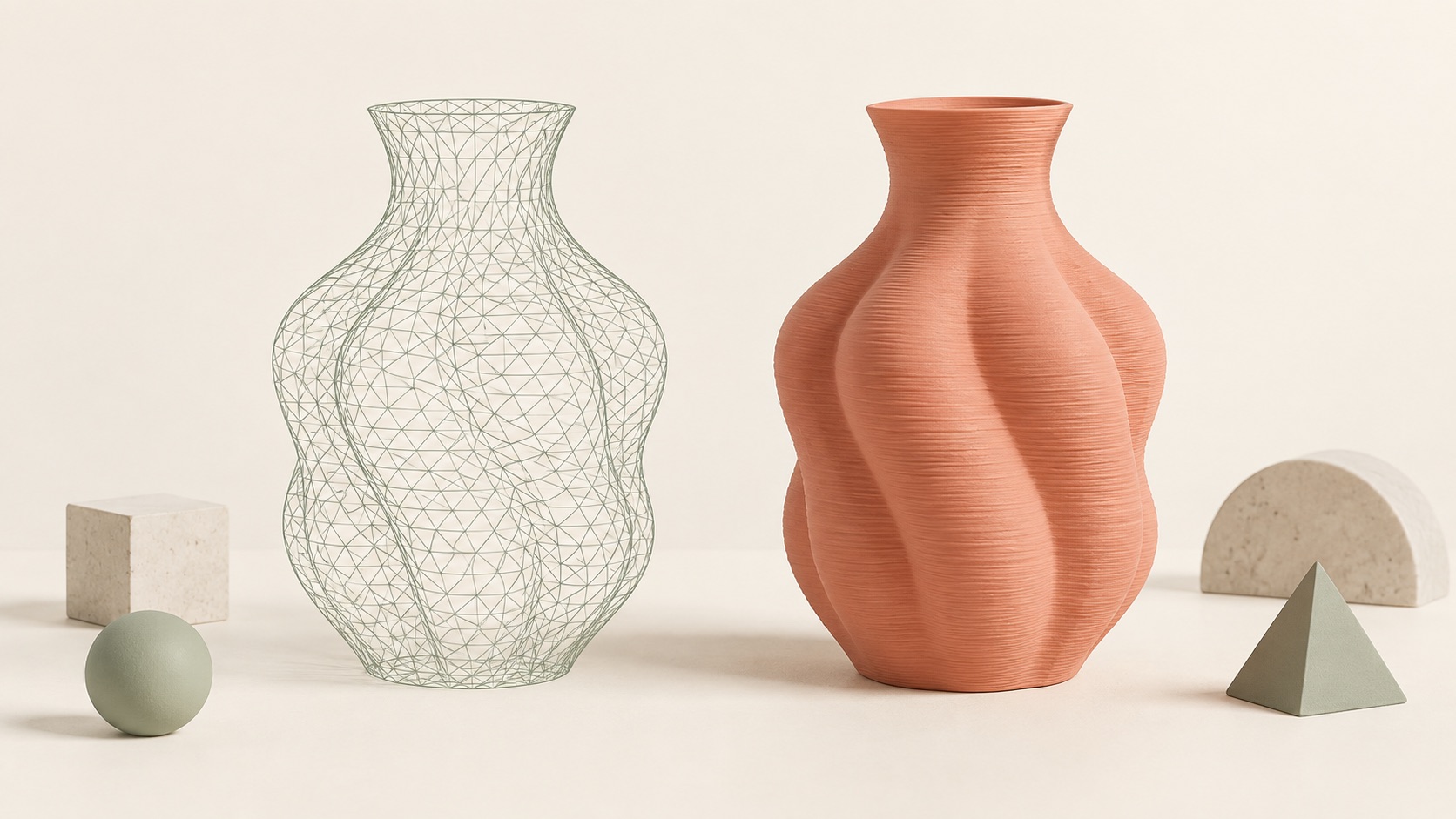
An STL file does not store an object as smooth mathematical surfaces. Instead, it covers the model with a mesh of flat triangles.
Imagine wrapping a smooth object in thousands of tiny triangular panels. Together, those panels approximate the shape of the original object.
Simple flat areas may only need a few triangles. Curved areas need more triangles to appear smooth.
This means the quality of an STL model partly depends on its mesh resolution:
-
Too few triangles can make curves look rough or faceted.
-
More triangles can create smoother surfaces.
-
Too many triangles can produce unnecessarily large files without improving the printed result.
A very dense mesh does not automatically mean a better print. If the additional detail is smaller than your printer can reproduce, it will not appear in the finished object.
What information does an STL file contain?
An STL file mainly contains:
-
The position of each triangle
-
The direction each triangle faces
-
The overall surface shape of the model
A standard STL file normally does not contain:
-
Color textures
-
Reliable material information
-
Printer settings
-
Layer height
-
Infill
-
Support settings
-
Printing temperature
-
Printing speed
-
A reliably defined measurement unit
That final point often surprises beginners. An STL stores numerical coordinates, but it does not formally specify whether those numbers represent millimeters, inches, or another unit.
Most modern 3D printing workflows assume millimeters, but scale problems can still happen when files move between different modeling tools.
Is an STL file ready to print?
Not by itself.
An STL file describes the model’s geometry. Your printer still needs instructions about how to manufacture that geometry.
Those instructions are created by a slicer.
A typical workflow looks like this:
3D model or image → STL file → slicer → G-code → 3D printer
The slicer divides the model into layers and calculates:
-
Toolpaths
-
Infill
-
Supports
-
Wall count
-
Printing speed
-
Temperature
-
Cooling
-
Material use
-
Estimated printing time
For most filament printers, the resulting instructions are saved as G-code or another printer-specific format.
This is why you generally should not send an STL file directly to a printer. You first open it in software such as Cura, PrusaSlicer, or Bambu Studio and create instructions for your specific machine and material.
What makes an STL file printable?
A file can have the .stl extension and still contain a model that is difficult or impossible to print.
A printable STL should normally have a closed surface with a clear inside and outside. This is often described as a watertight mesh.
Common STL problems include:
-
Holes in the surface
-
Non-manifold edges
-
Intersecting faces
-
Reversed normals
-
Duplicate surfaces
-
Disconnected parts
-
Internal geometry
-
Walls that are too thin
Some slicers can automatically repair simple mesh errors. Dedicated STL repair tools can also help. However, technical repair does not guarantee a successful print.
A technically valid STL may still have extreme overhangs, a tiny contact area, fragile features, or details that are too small for the chosen printer.
Printability depends on both the file and the planned printing conditions.
How do you open an STL file?
You can open an STL file in several types of software.
A 3D model viewer
Use a viewer if you only want to rotate, zoom, and inspect the model. Browser-based viewers are convenient because they do not require installing design software.
A slicer
Use Cura, PrusaSlicer, Bambu Studio, or another slicer if you want to prepare the model for printing.
A slicer lets you:
-
Resize the model
-
Change its orientation
-
Add supports
-
Choose layer height
-
Set walls and infill
-
Preview individual layers
-
Generate printer instructions
3D modeling software
Programs such as Blender, Fusion, FreeCAD, Meshmixer, or other mesh-editing tools can be used to modify STL geometry.
Editing an STL is sometimes less convenient than editing the original design file. The STL contains triangles rather than the design history, sketches, parameters, and editable features used to create the object.
Can an image be converted into an STL file?
Yes, but an image and an STL contain very different types of information.
A JPG or PNG is made of flat pixels. An STL describes a three-dimensional surface. Conversion software must therefore decide how the image should become geometry.
Common approaches include:
-
Extruding the outline of a logo or icon
-
Turning brightness into height
-
Creating a shallow relief
-
Using AI to estimate a complete 3D object
Simple logos, silhouettes, and line drawings are usually easier to convert because their shapes are clear.
A photograph is more complicated. One image does not show the exact depth, back, or hidden areas of the subject. An AI image-to-3D tool must estimate that missing information.
After converting an image to STL, always inspect the result from every angle and check it in a slicer before printing.
What is the difference between STL and 3MF?
STL remains popular because it is simple and supported by almost every 3D printing program.
However, 3MF is a newer format designed to carry more information.
| Feature | STL | 3MF |
|---|---|---|
| Surface geometry | Yes | Yes |
| Defined measurement units | Limited | Yes |
| Color information | Generally no | Supported |
| Material information | Generally no | Supported |
| Multiple objects | Limited workflow | Better supported |
| Metadata | Very limited | Supported |
| File size | Can be large | Usually compressed |
| Software compatibility | Extremely broad | Broad and growing |
For a simple single-color model, STL is often enough. For a multi-part or multi-color project, 3MF may preserve more useful information.
The best format depends on the software, printer, and workflow you use.
Can STL files contain color?
Standard STL files are generally treated as geometry-only files.
Some software has experimented with non-standard ways to add color information, but these methods are not consistently supported. You should not assume that color visible in a 3D preview will be preserved in an STL export.
If color or multiple materials are important, consider formats such as 3MF, OBJ, or another format supported by your software.
For ordinary single-color filament printing, this limitation may not matter because the physical color comes from the filament loaded into the printer.
Can you resize an STL file?
Yes. Most slicers and 3D modeling programs can scale an STL before printing.
However, resizing can change whether the design remains printable.
When you make a model smaller:
-
Walls become thinner
-
Text becomes harder to read
-
Gaps may close
-
Small details may disappear
-
Connections may become fragile
When you make it larger:
-
Print time increases
-
Material use increases
-
Existing surface flaws become more visible
-
The model may no longer fit on the build plate
Always inspect the sliced layer preview after changing the scale.
Are STL files safe to download?
An STL is a geometry file, not a normal executable program. However, you should still download models from sources you trust.
Before printing a downloaded STL:
-
Check the license
-
Confirm whether commercial use is allowed
-
Inspect the geometry
-
Verify the dimensions
-
Check for hidden or unexpected parts
-
Slice the model yourself
-
Review the layer preview
A file being available online does not automatically mean you can sell the file or physical prints made from it. The creator’s license determines what is allowed.
How do you prepare an STL for 3D printing?
Use this basic checklist:
-
Open the STL in a trusted viewer or slicer.
-
Confirm that the model is the expected object.
-
Check its dimensions and units.
-
Look for holes or disconnected geometry.
-
Run a mesh repair check if necessary.
-
Choose a practical orientation.
-
Add supports only where required.
-
Select the correct printer and material profile.
-
Slice the model.
-
Inspect the layer preview before exporting the print file.
The layer preview is one of the most useful checks. It shows what the printer will actually attempt to build, rather than only showing the model’s outer surface.
Is STL still a good format for 3D printing?
Yes. STL is old and limited, but it remains useful.
Its biggest strengths are simplicity and compatibility. Almost every slicer, modeling program, repair tool, and model-sharing platform can work with STL files.
Its weaknesses become more noticeable when a project needs color, multiple materials, precise unit handling, metadata, or a collection of separate parts.
For many everyday single-object prints, STL continues to work well. For more advanced workflows, 3MF may be the better option.
Final thoughts
An STL file is best understood as a container for 3D surface geometry.
It tells software what an object is shaped like, but it does not tell your printer exactly how to make it. That is the slicer’s job.
Before printing an STL, remember to check:
-
Geometry
-
Scale
-
Wall thickness
-
Orientation
-
Supports
-
Licensing
-
Sliced layers
Whether you download a model, export one from CAD, or create it from an image, the STL is only one step between an idea and a physical object.
Tools such as PrintVerse can help turn images and adjustable designs into 3D models, but the same rule still applies: always review the geometry and sliced result before starting the final print.
Share this post
More to read
Author

Mia Chen
Mia explores how shapes and materials become everyday objects, with clear guides to 3D design and printing.